Digital Reading Skills: How to Study Effectively on Screens
Studying on screens is no longer a backup option it has become the default for many students, professionals, and lifelong learners. Yet reading digitally is not the same as reading on paper; screens introduce unique strengths and unique challenges. Distraction, shallow skimming, eye strain, and fragmented attention are common pitfalls, while searchability, portability, instant access, and multimedia support are unique advantages. To truly benefit from screen-based learning, digital reading must be treated as a skill with an intentional workflow.
This guide explains what makes reading on screens different, what screens do well, and how to create a practical system for deep comprehension, retention, and efficient note-making.
1) What Changes When You Read on a Screen
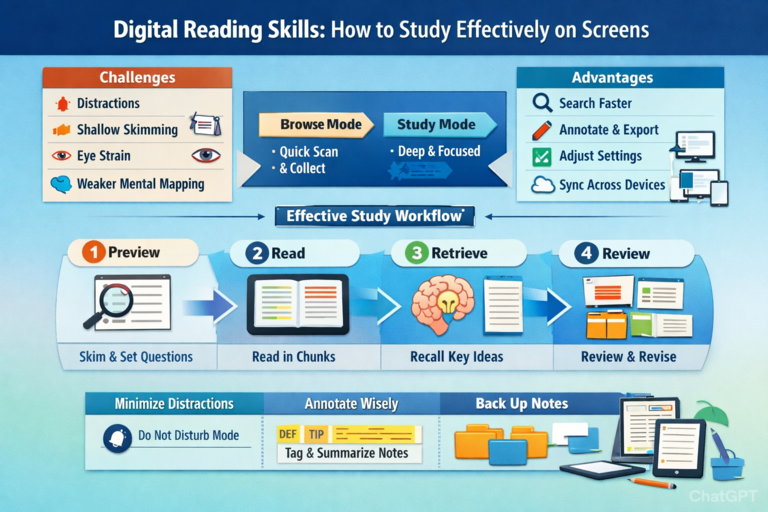
Common Challenges
Distraction and task-switching
Notifications, multiple tabs, and app-switching constantly interrupt focus. Even brief interruptions force re-reading and reduce comprehension.
Shallower processing
Screens encourage scrolling and skimming. Many readers unconsciously shift into “browse mode,” which is suitable for news but inadequate for studying.
Weaker mental mapping
With paper, spatial cues like where something appeared on a page aid memory. Scrolling text reduces these cues, making it harder to build a mental map of the material.
Eye fatigue and posture issues
Small fonts, glare, and poor ergonomics can shorten attention span long before motivation runs out.
Real Advantages of Screens (When Used Well)
Search and retrieval
Finding terms, definitions, and references is faster than flipping pages.
Annotation, linking, and exporting
Highlights can become flashcards, outlines, or searchable knowledge bases.
Adjustable readability
Font size, line spacing, themes, and text-to-speech can make difficult material more accessible.
Portability and syncing
You can study in short sessions across multiple devices without losing your place.
The goal is to maximize these benefits while controlling the downsides especially distraction and superficial reading.
2) Choose the Right “Reading Mode”: Browse vs. Study
A major reason digital reading often fails is using the wrong mode.
Browse mode (fast, selective)
Use for:
-
Scanning headlines or overviews
-
Collecting sources
-
Locating key sections
-
Comparing viewpoints
Study mode (slow, effortful)
Use for:
-
Textbooks, exam preparation, technical manuals
-
Academic papers
-
Anything you must recall or apply later
Rule: If you’ll be tested on it, teach it, or use it at work, you need study mode structured, distraction-free, and active.
3) Set Up Your Screen Environment for Deep Reading
A) Control Distractions
-
Activate Do Not Disturb / Focus mode.
-
Use site or app blockers during study sessions.
-
Full-screen the reading app and close unrelated tabs.
-
If research is needed, do it in a separate timed block (e.g., “10 minutes to find references”) rather than mid-reading.
B) Optimize Readability
-
Increase font size until comfortable.
-
Use a neutral background (sepia or gray reduces glare).
-
Avoid overly wide columns.
-
Reduce brightness and reflections.
-
For long sessions, consider e-ink devices (like Kindle or Kobo) to reduce fatigue.
C) Improve Ergonomics
-
Keep the screen eye level at the top third of your field of vision.
-
Ensure proper chair support and feet grounded.
-
Use external keyboard/mouse for long laptop sessions.
-
Follow the 20–20–20 rule: every 20 minutes, look 20 feet away for 20 seconds.
4) The Digital Study Workflow: Preview → Read → Retrieve → Review
A repeatable process ensures screen reading becomes productive study.
Step 1: Preview (2–5 minutes)
-
Skim headings, subheadings, summaries, learning objectives, and key diagrams.
-
Write 1–3 guiding questions, e.g.:
-
“What problem does this method solve?”
-
“When should I use A instead of B?”
-
“What are the steps and common mistakes?”
-
Previewing prevents passive scrolling.
Step 2: Read in Chunks (10–25 minutes)
-
Break content into sections or 2–5 pages of dense material.
-
Read one concept + example at a time.
-
Avoid endless scrolling; paginated views help restore spatial cues.
Step 3: Retrieve (2–5 minutes, without looking)
-
Close the text and:
-
Write a 3–5 sentence summary from memory
-
Answer guiding questions
-
Explain the idea as if teaching a beginner
-
List steps or key terms
-
Retrieval practice beats re-reading for long-term retention.
Step 4: Review (Spaced Repetition)
-
Quick review the next day, then a few days later, and weekly.
-
Convert highlights into flashcards (Anki/Quizlet) the same day.
5) Annotation on Screens: What Actually Works
Tagged highlighting: Highlight only what’s useful later (definitions, formulas, key examples) and tag notes (DEF, STEP, EXAMPLE, TRAP).
One highlight = one idea: Avoid long multi-sentence highlights they’re hard to review.
Turn notes into outputs: Convert annotations into summaries, practice questions, flashcards, checklists, or outlines.
6) How to Study PDFs, Web Articles, and eBooks
A) PDFs:
-
Use a reader with good annotation and search.
-
Two-page view or “fit width” helps reduce zooming.
-
Split-screen notes improve comprehension.
-
Academic papers: read abstract + headings + conclusion → figures → methods.
-
Use OCR for scanned PDFs to enable search and copy.
B) Web articles:
-
Use Reader Mode to remove ads/clutter.
-
Save to read-it-later apps.
-
Avoid mid-reading tab openings; capture links in a “later” list.
C) eBooks (EPUB/Kindle):
-
Use built-in dictionary and search.
-
Bookmark key sections for weekly review.
-
Prefer paginated view for better navigation and mental mapping.
7) Note Systems That Pair Well With Screen Reading
Option 1: Cornell notes – simple, effective; split-screen friendly.
Option 2: Progressive summarization – first highlight, then bold key points, then summarize.
Option 3: Zettelkasten-style atomic notes – one idea per note, link by topic, include citations; ideal for research and long-term knowledge building.
8) Comprehension Checks: How to Know You’re Learning
Ask yourself:
-
Can I explain this without looking?
-
Can I give an example and a non-example?
-
Can I solve a problem using it?
-
What would an exam question look like?
If you can’t answer, re-read strategically focus on gaps, not the whole section.
9) Speed vs Depth: When to Skim and When to Slow Down
Skim when:
-
Deciding if a source is worth deep reading
-
Scanning for relevant sections
-
Reviewing familiar material
Slow down when:
-
Learning new definitions or frameworks
-
Understanding explanations of “why,” not just “what”
-
Working through examples or problem solutions
Pattern: skim → choose → deep read, rather than deep-reading everything.
10) Make Screen Studying Sustainable
A) Use timed blocks – e.g., Pomodoro (25/5 or 45/10) to prevent drift.
B) Rotate formats – read theory on screen, do exercises on paper, summarize digitally.
C) Back up and organize – export highlights, maintain consistent folder/tag system, store citations.
11) A Practical “Study on Screens” Routine (Template)
Daily (30–45 minutes):
-
2–5 min preview: headings + goals
-
20–30 min read: one chunk, annotate lightly
-
5 min retrieval: closed-screen summary + 2 questions
-
5 min review: convert 3–5 items into flashcards or outline
Weekly (20–30 minutes):
-
Review highlights/notes
-
Identify weak points
-
Re-test yourself on challenging sections
Conclusion
Studying effectively on screens is less about willpower and more about method. By managing distractions, reading in purposeful chunks, annotating for retrieval, and using spaced review, screens can produce deep learning often more efficiently than paper. The key is to switch intentionally from “scrolling” to a structured, skillful study workflow